
This article examines a prevalent macOS cyber threat technique where malicious websites trick users into executing hidden commands via the Terminal app. By mimicking routine security checks, attackers use clipboard manipulation to execute arbitrary code. Recognizing deceptive command-line instructions, avoiding unauthorized shell execution, and deploying robust endpoint security practices are essential to protecting local machine integrity.
What Is the macOS Clipboard Terminal Attack?
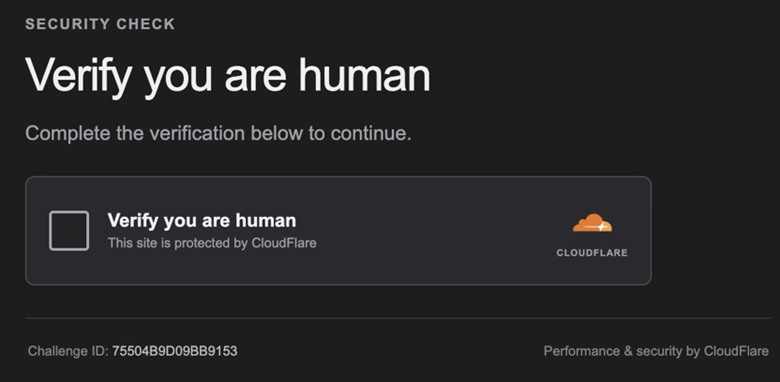
The vector shown in the image represents a deceptive social engineering technique targeting macOS users, frequently referred to in cybersecurity analyses as a clipboard injection or a malicious Terminal copy-paste attack. This method relies on user interaction to bypass browser sandboxing protections. Instead of exploiting a zero-day vulnerability in Safari or Chrome, the attacker tricks the user into voluntarily opening the native Terminal application and executing obfuscated shell commands.
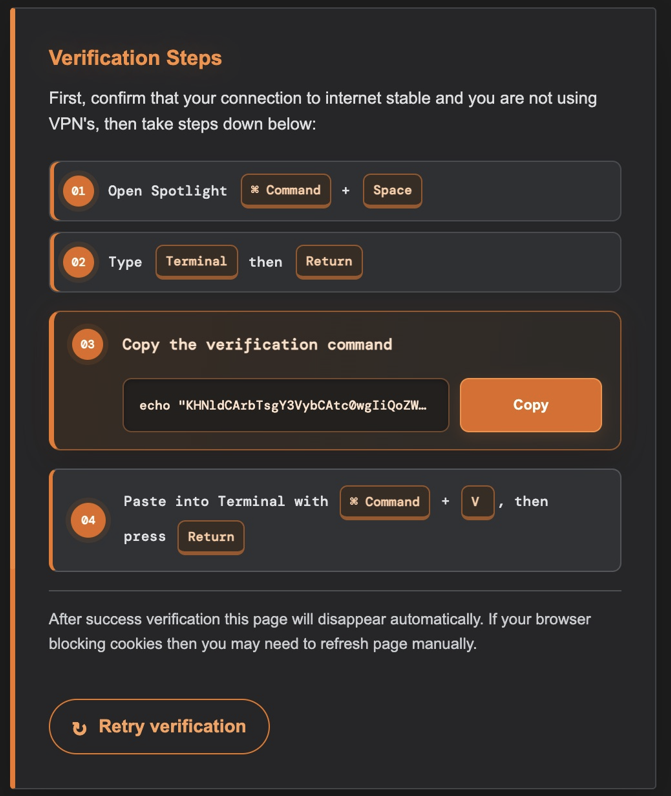
The mechanism relies on psychological manipulation. A compromised or malicious landing page displays a fake CAPTCHA, a browser integrity check, or a software verification step. It instructs the user to open Spotlight via Command + Space, launch the Terminal, and paste a pre-copied string. Behind a benign-looking interface, the hidden clipboard payload contains complex shell instructions designed to download and execute malicious binaries, establish persistence, or exfiltrate sensitive data.
How to Identify This Scam Versus Legitimate Verification
Differentiating between legitimate administrative instructions and malicious social engineering requires careful scrutiny of command-line syntax and context. Technical professionals can identify this specific threat vector by analyzing several distinct red flags.
Contextual Red Flags
- Unsolicited Prompts: Legitimate websites, cloudflare challenges, or standard reCAPTCHAs never require interaction with a local command-line interface like Terminal or PowerShell.
- Platform Inconsistency: Asking a macOS user to execute shell scripts for a routine browser verification or anti-bot check violates standard web application security design.
- Obfuscation Techniques: The string copied to the clipboard often contains hidden characters, long encoded base64 strings, or multi-stage execution commands (such as piping output directly into bash or zsh).
Technical Command Analysis
Inspecting the contents of the clipboard before execution reveals the true nature of the payload. If you paste the copied content into a plain text editor rather than directly into the Terminal, you can inspect the raw text. Attackers typically use obfuscation wrappers, such as:
Bash
# Example pattern of a malicious clipboard injection payload
echo “…” | base64 –decode | sh
Legitimate software installations or developer tooling documentation will explicitly detail every step, explain what the script modifies on the filesystem, and point to trusted official repositories rather than opaque verification screens.
What Should Be Done Immediately
If you or someone on your team has already interacted with a prompt matching this pattern, immediate incident response steps must be taken to secure the endpoint.
- Disconnect from the Network: Immediately isolate the affected Mac from Wi-Fi and ethernet connections to prevent potential command and control communication or data exfiltration.
- Inspect Running Processes: Open Activity Monitor or use the Terminal command ps aux to check for unauthorized background processes, unknown daemons, or unexpected network connections.
- Review Shell History: Examine the user shell history file (such as ~/.zsh_history or ~/.bash_history) to identify precisely what commands were passed to the shell during the incident.
- Audit System Persistence Locations: Check common macOS persistence mechanisms, including LaunchAgents and LaunchDaemons located in ~/Library/LaunchAgents, /Library/LaunchAgents, and /Library/LaunchDaemons, for newly dropped malicious plists.
- Run Endpoint Detection: Execute a thorough scan using reputable macOS endpoint security and antivirus tools to detect and quarantine unauthorized binaries or dropped payloads.
What Should Not Be Done
In the event of encountering this type of social engineering attack, certain actions can exacerbate the security risk or hinder forensic analysis.
- Never Execute Opaque Commands: Do not blindly copy and paste code snippets from unverified web sources, forums, or unexpected browser pop-ups directly into your shell.
- Do Not Ignore Unfamiliar Terminal Output: If you accidentally paste a command and press Return, do not simply close the Terminal window and assume the threat is gone. Investigate what output was generated.
- Avoid Immediate Reformatting Without Triage: While wiping a machine guarantees eradication, doing so prematurely destroys valuable forensic artifacts that security teams need to understand the initial vector and scope of the compromise.
- Do Not Trust Browser Appearance: Do not assume a page is safe simply because it utilizes modern styling, dark mode, or mimics trusted brands like Cloudflare or Apple.
Technical Prevention and Defense Strategies
Mitigating the risk of clipboard injection and social engineering attacks across an organization involves a combination of user awareness and technical controls.
- Disable Rich Clipboard Execution Risks: Educate technical staff and general users to always paste untrusted text into a plain text editor first to inspect hidden payloads.
- Implement Endpoint Privilege Management: Restrict standard user accounts from executing unauthorized administrative commands or installing unsigned applications without proper authorization.
- Deploy Web Filtering and Threat Intelligence: Utilize advanced DNS filtering and secure web gateways to block known malicious domains hosting fake verification pages and browser locker scripts.
- Enforce Browser Hardening: Configure enterprise browsers to restrict clipboard access permissions or warn users when scripts attempt to write complex multi-line strings to the system clipboard.
If you need assistance reviewing endpoint security policies or require professional digital marketing and technical SEO solutions for your digital assets, feel free to reach out to our team today to ensure your infrastructure remains secure and optimized.

Sandamalee is a dedicated digital marketing professional and a core member of the Sotavento Medios team. I work closely with my colleagues to manage daily digital operations, ensuring that every project meets the high standards our clients expect. My focus is on maintaining the technical and editorial integrity of our diverse business portfolios, helping brands stay consistent and impactful in their online presence.